
Docs
Pixel Flow user manual and best practices
Find scanning, filtering, image details, library, export, account, and industry workflow guidance by task.
Batch Download Web Images and Keep Reviewable Source Records
Downloading images from a webpage is easy in everyday work and personal projects. What becomes surprisingly difficult later is explaining those images again: which page they came from, which original resource was downloaded, why they were selected, and whether their authorization still needs to be reviewed before use.
Fortunately, Pixel Flow provides a workflow for batch downloading images while keeping source records. It saves the images and their source clues together as a reviewable, handoff-ready package. Whether you organize the files yourself or pass them to a colleague, client, editor, or legal reviewer, the retained information provides a path back to the source instead of leaving everyone with a folder of disconnected files.
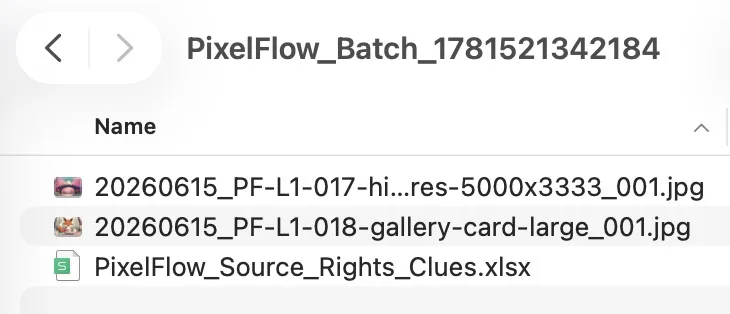
Important: Source pages, image URLs, download records, and spreadsheet fields are review clues, not proof of authorization. Before public publishing, client delivery, advertising, commercial design, model training, or redistribution, confirm the source website terms, license documents, client approval, and applicable law yourself.
What problem does this workflow solve?
If images may enter project files, design deliverables, content operations, review processes, or a long-term asset library, saving them to a computer only completes the first step: obtaining the files. Once the page is closed, files are renamed, or images pass through several rounds of sharing and handoff, their connection to the original page can be lost almost completely. When you later need to revisit the selection rationale, confirm the original resource, or explain the source to a colleague, you may be left guessing from memory and filenames or repeating the search from scratch.
Pixel Flow’s batch download with source records workflow restores the context that usually disappears when images leave a webpage. It cannot decide whether an image is authorized for use, but it can keep the image, source page, original image URL, download time, and readable creator or rights clues in one package. This gives later organization, review, and handoff a clear trace-back path and helps answer practical questions such as:
| Question you may face later | Clues retained in the download package |
|---|---|
| Where did this image come from? | Source page, site name, page title, and original image URL |
| How does the local file map to the web image? | Download filename, image URL, and download time |
| Why was this image selected? | Image description, dimensions, format, favorite status, or tags |
| Does authorization still need review? | Creator or rights fields, usage reminder, and source URLs for further review |
| Can someone else continue the work? | Image files and the spreadsheet remain together in one transferable package |
Step 1: Decide what the download package should include
Before selecting images, decide how much information the package should retain. Under Account & Settings → Source & Rights Clues, you can choose to download only image files or include a spreadsheet for later review.

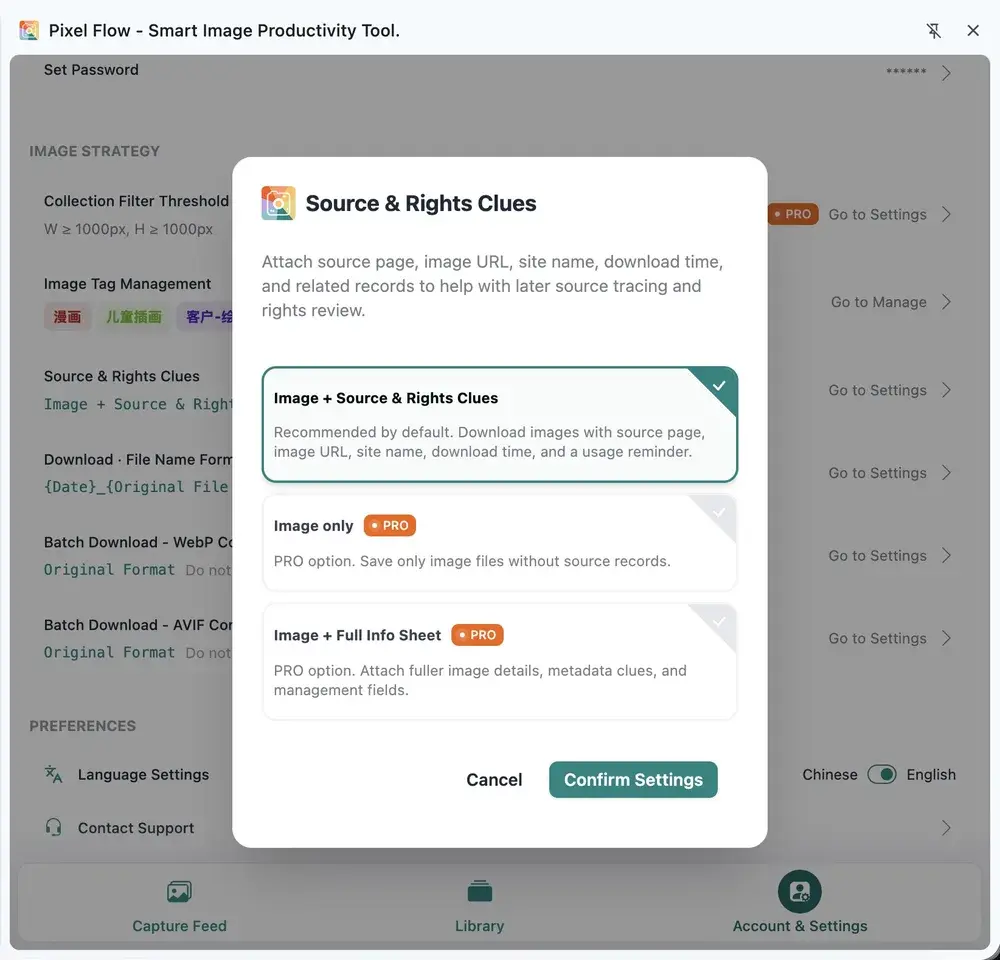
| Option | Download result | Best suited for | Availability |
|---|---|---|---|
| Image + Source & Rights Clues | Image files + source clue spreadsheet | The recommended default when you may need to revisit source pages, image URLs, and download times | Free / PRO |
| Image only | Image files only | Your external asset system already contains source, license, and approval records | PRO |
| Image + Full Info Sheet | Image files + a more complete spreadsheet | Team inventory, long-term archiving, library handoff, and metadata review | PRO |
If the table still feels abstract, switch between the settings and complete a test download for each one. Compare the package contents and the actual data in the Excel spreadsheets, then choose the mode that best matches your organization, review, and handoff needs.
Step 2: Select the download range from one of two entry points
Pixel Flow has two entry points for batch download: the Capture Feed and the Library. Both lead to the same batch download workflow; the difference is where the images currently live. Use the Capture Feed when you are browsing a page and want to download newly discovered images. Use the Library when the images have already been favorited and organized.
| Batch download entry point | Best suited for | How to select images |
|---|---|---|
| Capture Feed | Download images just captured from the current webpage | Scan the page, filter by format, aspect ratio, source type, and resolution, then select the images to download |
| Library | Download images that were previously favorited and organized | Filter by tags, project, client, purpose, or review status, then select the images to download |
Whichever entry point you use, first decide which images belong in the package you are organizing. A more accurate download range creates a clearer mapping between image files and spreadsheet rows, making later review and handoff easier.
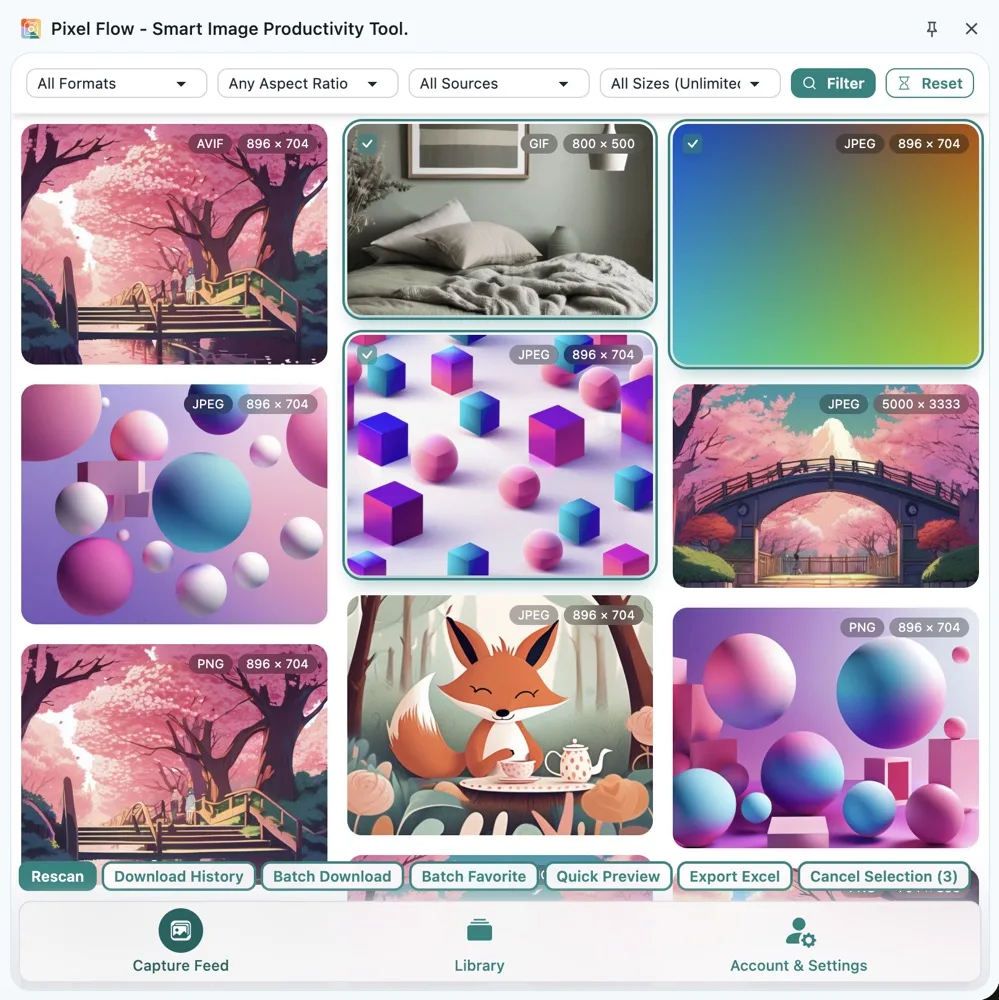
Whether an image is in the Capture Feed or Library, you can open Image Details or use Batch Preview when its source or properties are unclear. Review its dimensions, format, source, and readable metadata clues before deciding whether it belongs in this batch. Once the selection range is fully confirmed, start the batch download from the current entry point.
How to read the default source clue spreadsheet
When you select Image + Source & Rights Clues, the package includes PixelFlow_Source_Rights_Clues.xlsx. It maps local image files back to their source pages so the next person can start with a file and continue reviewing its webpage context and authorization materials.

The spreadsheet attempts to retain the following information:
| Field | What it helps you review |
|---|---|
| Download filename | Which local file the row describes |
| Download time | When the image was saved |
| Source page URL | The webpage where the image appeared |
| Original image URL | The image resource that was downloaded |
| Site name / page title | The context surrounding the image |
| Image alt text | The text description supplied by the webpage |
| Image type / width / height | Basic technical information about the downloaded file |
| Rights / creator information | Creator, copyright, title, description, or software clues that may exist in the image file |
| Usage reminder | A reminder to confirm authorization yourself, not authorization from Pixel Flow |
An empty field is not necessarily an error. Website compression, format conversion, metadata cleanup, dynamic pages, cross-origin resources, and temporary URLs can all make information unavailable. A blank field only means Pixel Flow did not obtain that clue during capture or analysis; it does not mean the image is cleared for use.
Use the Full Info Sheet for long-term organization
If the images will enter a library, a long-running project, or a team inventory, select Image + Full Info Sheet. The package’s PixelFlow_Image_Info.xlsx adds more asset management records and readable metadata beyond the default source clues.
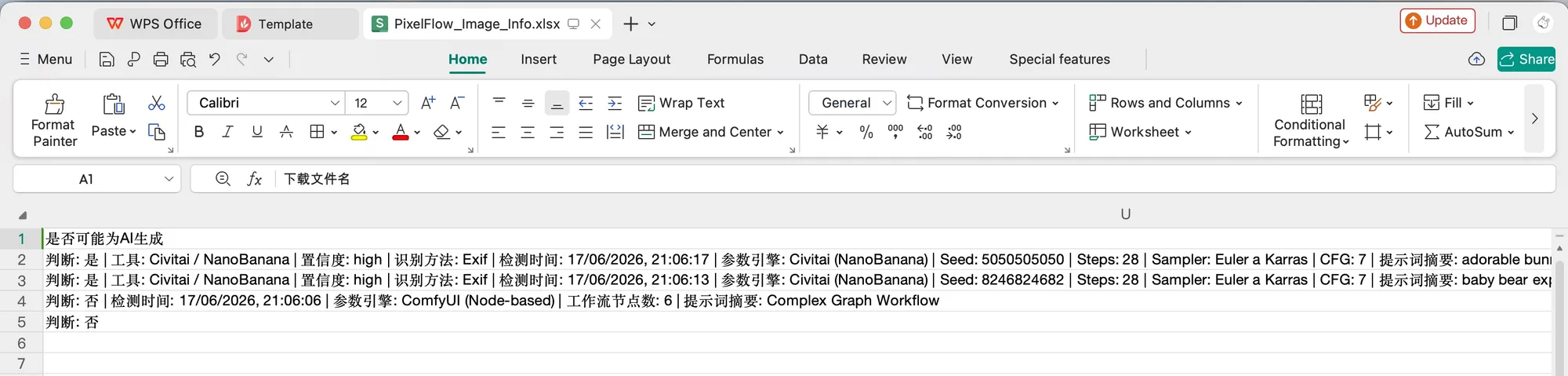
The Full Info Sheet may additionally include:
- Original filename and a human-readable file size.
- Capture time, favorite time, download count, and most recent download time.
- Compatible image URLs, such as multiple responsive image sources.
- Custom tags that carry project, client, or review status from the Library into the spreadsheet.
- AI/AIGC clue summaries, such as a possible AI assessment, detection method, generation parameters, or model fields.
- GPS coordinates, altitude, or location clues when the image file retains them.
- Camera, lens, exposure, focal length, capture time, and other photographic parameters.
- Editing software, modification time, creator, copyright notice, title, and description fields.
This information comes from webpage structure, readable image metadata, Library records, and Pixel Flow analysis. Use it to organize materials and identify questions that still need review, not as a final conclusion about source, creator identity, or authorization status.
Downloaded image filenames can also support review
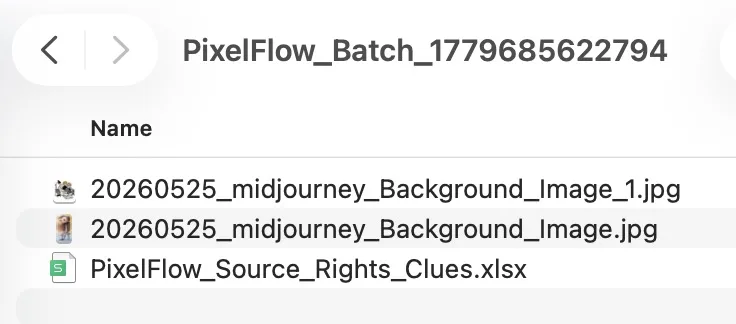
The spreadsheet preserves detailed clues, while filenames help you identify images quickly in a folder. Before downloading, configure Account & Settings → Download · Filename Format to include the source website, original filename, image description, page title, date, or dimensions in each filename.
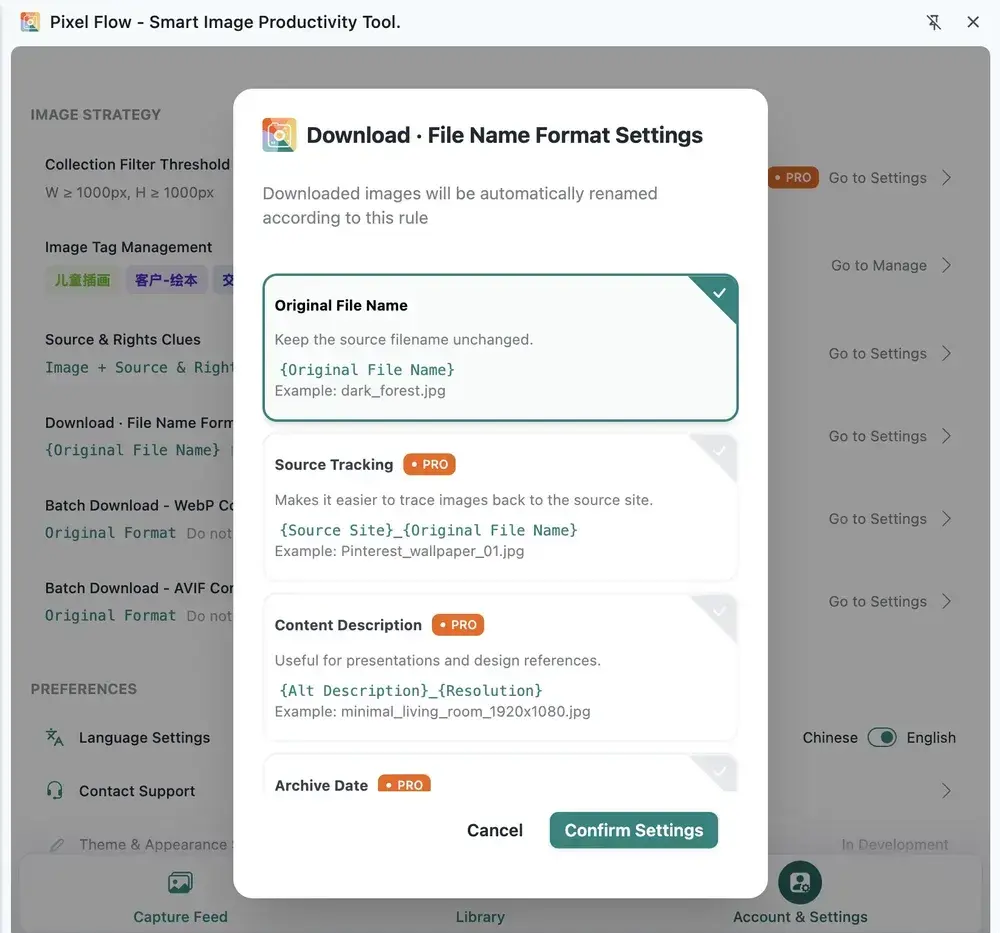
The naming rule mainly affects image filenames inside the archive. Batch download archives generally continue to use PixelFlow_Batch_timestamp.zip. When both high-resolution and standard-resolution images are downloaded, filenames may include an _original or _standard suffix. Pixel Flow appends a number when duplicate filenames occur so files do not overwrite each other.
Although filenames can give you a rough organization direction at a glance, they are too short to contain complete source information. When you need to revisit the source page, original image URL, download time, or creator and rights clues, use the spreadsheet saved with the package. See Download Filename Format for the complete naming rules.
Use download records to revisit the entire asset organization process
You do not need to open Download Records after every download. The browser can confirm whether a single download completed. Pixel Flow’s Download Records are primarily a retained history of successful downloads across the entire asset organization stage, helping you revisit earlier work when a project lasts several days, involves multiple selection rounds, or passes between team members.
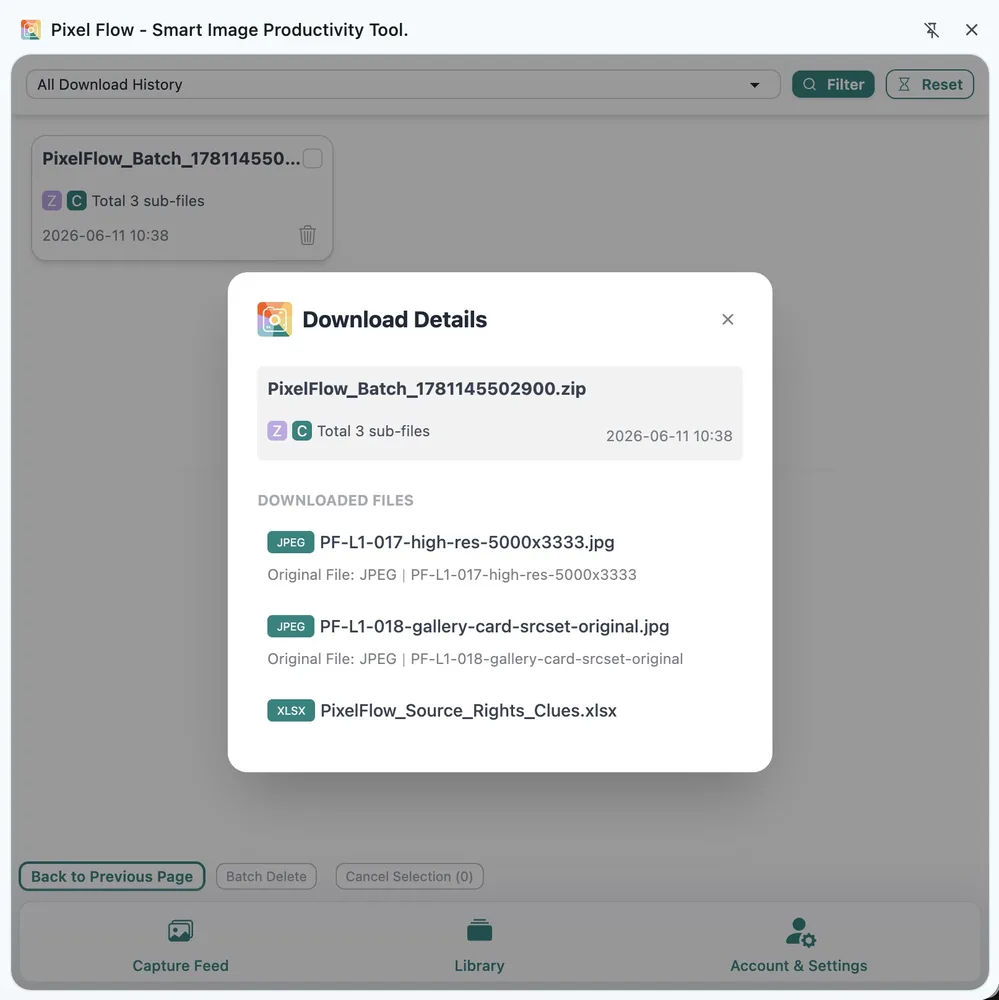
After every successful download, Pixel Flow retains a record containing the file or archive name, entry point, download time, and file count. When you need to revisit a particular stage, these records can show:
- Which downloads were completed during a particular period.
- Whether a batch download came from the Capture Feed or Library.
- How many files were included in each download.
- The filename used when a particular image was saved.
- Whether the same asset group went through multiple downloads or another round of organization.
Download Records are stored locally. They are not the handoff package itself and are not a cloud backup. Clearing extension data or uninstalling the extension may remove them. For long-term projects, keep the actual packages and use Data Backup and Migration to back up Pixel Flow’s local data. See View Download Records for more details.
From selection to handoff: build a reviewable package
The download settings, selection entry points, source clue spreadsheet, filename rules, and download records described above all serve one goal: keeping source information traceable after images leave a webpage. In practice, connect them into the following process to move from image selection and download to review and handoff:
- In Account & Settings, confirm Source & Rights Clues, filename format, and any necessary format conversion rules.
- Based on where the images currently live, enter batch download from the Capture Feed or Library.
- In the Capture Feed, filter by format, aspect ratio, source type, and resolution; in the Library, filter by tags and keywords.
- For key images, open Image Details or use Batch Preview to confirm dimensions, format, source, and readable metadata.
- Confirm which images belong in the package and select them.
- Start the batch download to create a package containing image files and an Excel spreadsheet.
- If the project involves multiple downloads, use Download Records to revisit archives, download times, and file counts from different stages.
- Store the images, spreadsheet, and existing license or approval materials in the same project folder before handing them to the next person.
- Before publishing, delivery, commercial use, or model training, complete the final review based on source website terms, authorization materials, and your team’s process.
Technical background, optional: You do not need to understand these standards to complete the workflow. Following the steps above to select images, keep the spreadsheet, and review authorization is enough. Continue below only if you want to understand why some source fields are complete while others are empty.
How much Pixel Flow can retain depends on what the webpage and image provide. Web images may come from standard image elements, responsive images, CSS backgrounds, embedded resources, or script-loaded content. Pixel Flow attempts to record image URLs, page titles, site names, alt text, dimensions, and formats that the browser can read, but it cannot reconstruct information that the webpage never supplied.
img,srcset,sizes, and responsive image sources are part of the HTML image mechanism described by WHATWG HTML Images.- Background images commonly come from CSS
background-image; see W3C CSS Backgrounds and Borders. - EXIF is a common image metadata standard for digital cameras and imaging devices; see CIPA Standards.
- Creator, title, caption, and copyright metadata used in photography and news workflows commonly appears in IPTC / XMP systems; see IPTC Photo Metadata.
These standards explain where fields may come from, but they do not guarantee that every image retains them. Platform compression, screenshots, re-exporting, format conversion, CDN transcoding, and privacy cleanup can all remove metadata.
Frequently asked questions
Why does the default download include a spreadsheet?
Images can lose their context as soon as they leave a webpage. The default spreadsheet maps local files to their source pages, original image URLs, and download times for later review and handoff.
Does the spreadsheet prove that I can use an image commercially?
No. It only preserves source and metadata clues that were readable at download time. Commercial use, publishing, delivery, model training, or redistribution still depends on license documents, source website rules, client approval, likeness rights, trademark rights, and the intended use.
Why are creator or copyright fields empty for some images?
Many images never contained those fields, and many platforms remove EXIF, IPTC, or XMP metadata during upload, compression, conversion, or download. An empty field does not mean an image is cleared for use or has no rights holder.
What if the source link stops working later?
Keep project notes, necessary page screenshots, and authorization materials together with the source clue spreadsheet. These records provide a stronger review path if the page later disappears, but they still do not replace proof of authorization.
Do Download Records sync to the cloud automatically?
No. Download Records are stored in the local browser. Switching browsers, clearing extension data, or uninstalling the extension may affect them. Back up long-term projects regularly.
What if I only want the images and not the spreadsheet?
Select Image only under Source & Rights Clues. This is a PRO option intended for workflows where source, license, and approval materials are already retained in an external system.